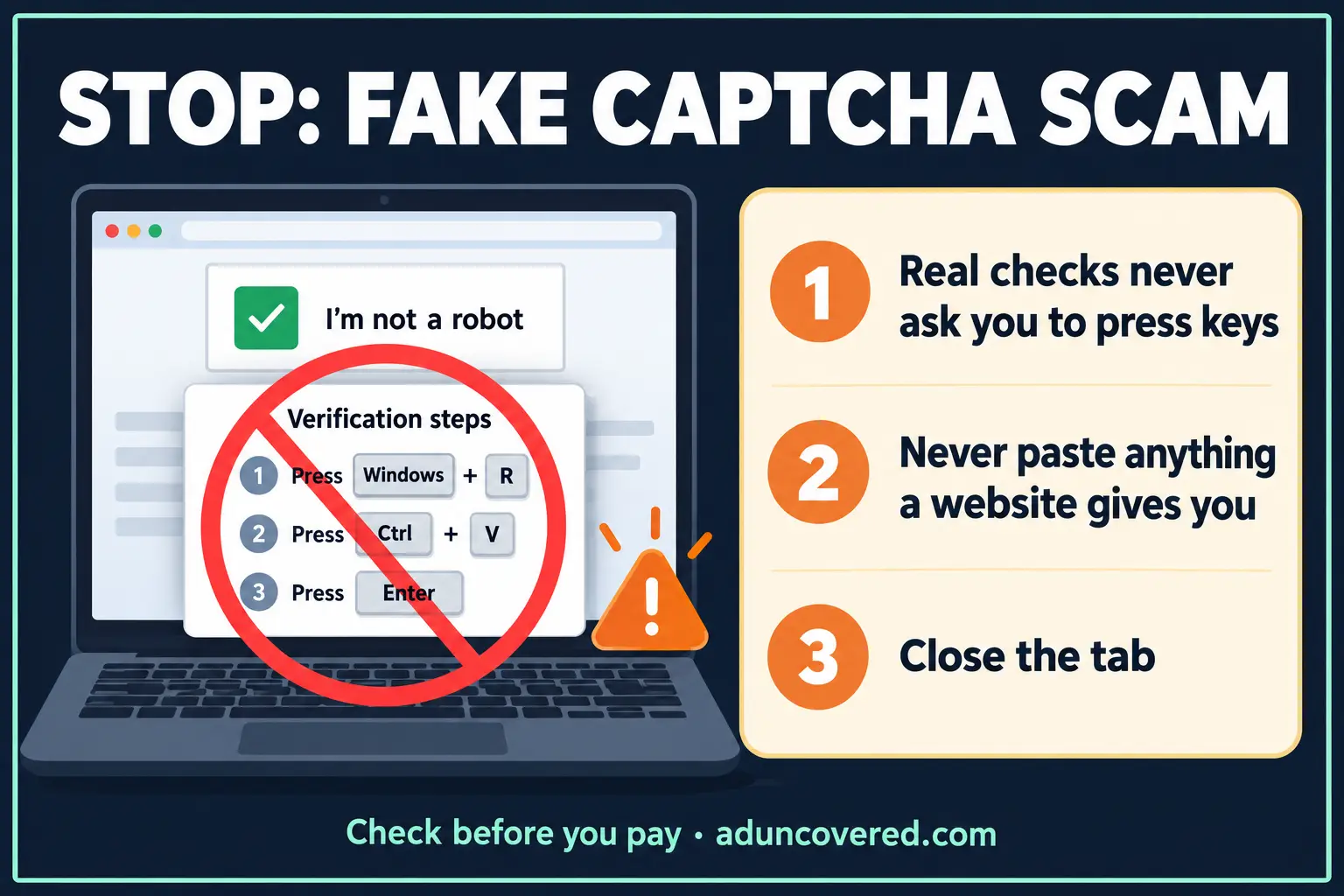
A real “I’m not a robot” check never asks you to press keys, open a window or paste anything. If it does, close the tab.
You are on a website you know: a shop, a news site, a page with a shared document. A familiar box appears: “Verify you are human.” You tick it. Then a second message: press the Windows key and R, press Ctrl and V, press Enter. It feels like one more annoying security step.
It is not. Those three keystrokes run a command that the page has quietly copied for you. You have just installed the criminal’s software yourself. Security researchers call this trick ClickFix, and it is one of the fastest-growing ways computers are infected today. This guide explains how the fake CAPTCHA scam works, how to protect yourself, and exactly what to do if you have already followed the steps.
How the fake CAPTCHA scam works
- A hacked or fake web page shows a look-alike CAPTCHA or “Cloudflare” check, or a fake error message such as “This page can’t be displayed. Click Fix.”
- When you click the box or the button, the page secretly copies a command to your clipboard.
- The page then gives you “verification steps”. On Windows: press Windows + R, then Ctrl + V, then Enter. On a Mac: open Terminal, paste and press Return.
- The command downloads software that steals information from your computer and sends it to the criminals.
Microsoft describes exactly this sequence: the click copies the command to your clipboard and the page then asks you to paste it into the Windows Run box (Microsoft Security). Mac users are targeted the same way through Terminal (BleepingComputer, June 2026). A newer variant called “FileFix” pretends a document has been shared with you and asks you to paste a “file path” into the File Explorer address bar. It does the same damage (The Hacker News).
What the fake CAPTCHA scam steals
The software used in these attacks, known as an information stealer, collects saved browser passwords, the “keep me signed in” sessions for your accounts, saved payment cards, cryptocurrency wallets and documents (Microsoft; BleepingComputer). On a Mac it can also take the Keychain, where your passwords are stored.
Why the fake CAPTCHA scam is spreading
Security company ESET reported that ClickFix attacks rose by 517% in the first half of 2025, making it the second most common attack it blocked after phishing (Infosecurity Magazine). Warnings have since come from governments and universities around the world (Own Your Online, New Zealand; Ohio University). We have not found a South African figure, but the trick does not care where you live: it works on any Windows or Mac computer.
Why your antivirus may not stop it
Because you start the command, it looks to the computer like something you chose to do. Security software can miss it for that reason (Money.ca). That is why the most important protection is not a program. It is knowing the rule at the top of this page.
Where you might see a fake CAPTCHA scam
- A genuine website that has been hacked, such as a small online shop, a blog or a news site
- Free streaming, download and “watch the match” sites
- A “document shared with you” page linked from an email or message
- A pop-up claiming your browser has a problem that you must “fix”
- Search results and adverts leading to look-alike sites
The website itself can look completely normal. The warning sign is never the design. It is the instruction to press keys or paste something.
How to protect yourself from the fake CAPTCHA scam
Before it happens
- Learn the one rule. No genuine website check ever asks you to press Windows + R, open Terminal, open PowerShell or paste anything. Close the tab.
- Turn on two-step verification with an authenticator app for your email, banking and social media. An app such as Microsoft Authenticator or Google Authenticator generates the codes on your phone, so a stolen password alone is not enough.
- Do not let your browser save your banking password. Saved browser passwords are the first thing these programs collect.
- Switch on banking notifications so you get an SMS or app alert for every payment and login.
- Keep Windows, macOS and your browser updated, and keep Microsoft Defender or your antivirus switched on. It will not catch everything, but it catches a lot.
- Sign out of your bank and email when you have finished, rather than staying signed in for weeks.
- Talk to older family members. Show them a screenshot of a fake check and agree a simple rule: “If a website ever asks you to press keys or paste something, stop and phone me.”
A word about two-step verification: it protects your password, but these programs can also steal the “stay signed in” session from your browser. That is why the steps below include signing out of every device, not just changing passwords.
Fell for a fake CAPTCHA scam? What to do next
If you pasted the command, do not panic and do not wait. Act in this order.
In the first minutes
- Disconnect the computer from the internet. Switch off Wi-Fi, unplug the network cable or switch on airplane mode. This can stop more information being sent out.
- Stop using that computer. Do not log in to anything on it and do not type any passwords.
- Block your bank cards in your banking app on your phone, or phone your bank’s fraud line using the number on the back of your card. Tell them what happened and ask them to watch your accounts.
Within the hour, from your phone or another clean device
- Change your email password first. Your email is the key that resets everything else.
- Change your banking password and PIN, then the passwords for any other accounts that were saved in that browser.
- Sign out of all devices. Google, Microsoft, Apple, Facebook, WhatsApp Web and most banks have a “sign out everywhere” or “active sessions” option. This removes any session the criminals copied.
- Set up two-step verification with an authenticator app on those accounts if you have not already.
- If you hold cryptocurrency, move it from a clean device to a new wallet, because wallet files may have been copied.
The same day
- Have the computer cleaned by an IT professional. Ask them to back up your documents and reinstall the operating system. A quick scan alone may not remove everything.
- Write down what happened: the website address, the time and what the page told you to do. A photo of the screen helps.
- Report it. Tell your bank, and if money was taken, open a case at your nearest police station. Our guide on how to report a scam in South Africa explains who to contact.
In the weeks after
- Check your bank and card statements for payments you do not recognise.
- Watch your email and social media for messages you did not send. Warn your contacts if your account was used.
- Be extra careful with “your bank” or “your email provider” calling or messaging you. Criminals may use the stolen information to make the next scam more convincing.
The alert to share
STOP. Real “I’m not a robot” checks never ask you to press keys or paste anything.
Windows + R? Paste? Enter? Close the tab.
Check before you pay · aduncovered.com
Screenshot this and send it to your family WhatsApp group. The people most likely to follow the steps are the ones who trust that a familiar-looking website is safe.
Got a link? Check the website before you pay
If a shop or advert link took you to a page like this, do not go back to it. You can paste the link into the free Quick Check below to see what public warning lists say about the website. A clean result is not proof of safety: many hacked sites appear on no list yet.
Check before you pay
About to pay a seller or business you don’t know? Start with a Free Quick Check of the advert link. It screens for common warning signs and shows where each result came from.
If you need the seller researched, a Quick Report or Comprehensive Report brings together source-linked Search Results on the seller and the offer. Neither gives a verdict: you check the sources and decide for yourself.
Editorial note: This article provides general guidance based on public security research and official warnings. It is not technical, legal or financial advice. If you think your computer has been infected, contact your bank and a qualified IT professional. Research checked on 19 October 2026.