
Why MFA matters for business email
A one-person business or small business still has valuable accounts. Your email may contain invoices, customer details, payroll messages and links for resetting passwords. If someone takes over your mailbox, they can impersonate you, look for financial information or try to reset passwords for your other accounts.
A taken-over mailbox is also how invoice fraud with changed banking details starts: the criminal reads real invoices, then sends your customers “updated” bank details. The same takeover pattern hits shoppers too, as our guide to locking your store accounts before Black Friday explains.
Multi-factor authentication (MFA) adds another proof of identity when you sign in. In addition to a password, you might use a device, security key, passkey or code. The purpose is to make a stolen password insufficient on its own.
For a small business, MFA should be enabled on every business email account and other important accounts. Prioritise email, banking, payroll, accounting, cloud storage and administrator accounts. CISA recommends that businesses use MFA wherever possible and aim for phishing-resistant options. CISA small-business MFA guidance
What “phishing-resistant” means
A typical phishing scam sends you to a fake sign-in page. It asks for your password and perhaps a one-time code. If you enter both, the scammer may be able to use them immediately on the real service.
Some MFA methods add a useful barrier but can still be tricked this way. Phishing-resistant authentication is designed to link the sign-in proof to the real website or service, so it cannot simply be copied from a lookalike site and replayed. Passkeys and FIDO security keys use this kind of protection. NIST definition of phishing resistance
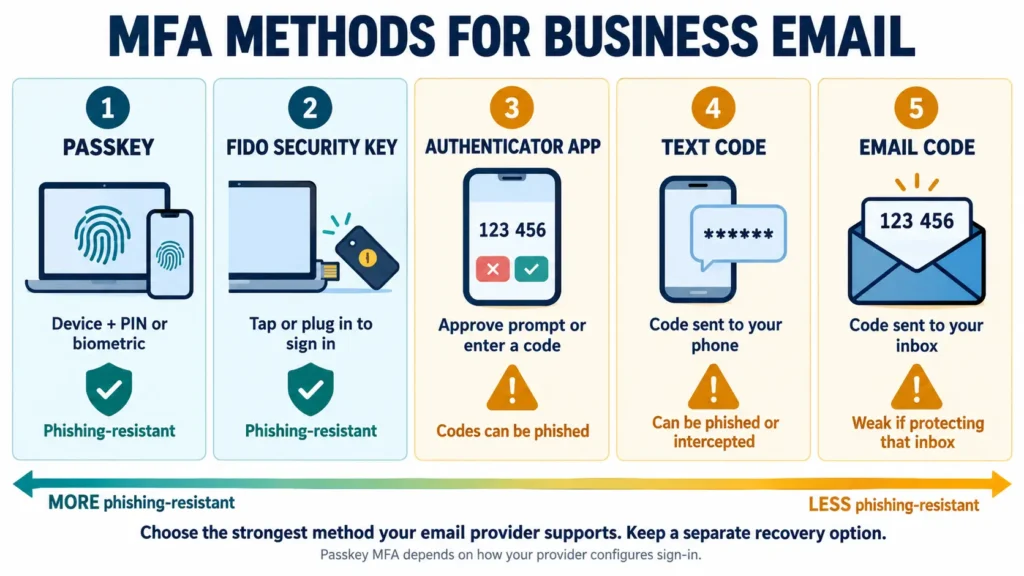
Your choices, from strongest to weakest
1. Passkeys
A passkey is a sign-in credential stored on a phone, computer, password manager or security key. You approve its use with the device’s PIN, fingerprint or face.
When you create one, your device keeps a private key and the service stores a matching public key. During sign-in, the device proves it has the private key without sending it to the website. The passkey is associated with the real website or app, so a copycat site should not be able to use it. A data breach of the service also does not expose a reusable password in the same way. FIDO Alliance: Passkeys · Google: Passkeys
A passkey can replace a password, or it can serve as the additional sign-in step. Whether it counts as MFA depends on how the provider has configured it: a passkey unlocked with a device PIN or biometric combines possession of the device with local verification; other configurations may treat it differently. Follow the email provider’s instructions for the account.
Some passkeys can sync through a trusted account across your devices, making recovery easier. Others are device-bound and stay on one device or physical key. Device-bound options give the business tighter control but are less convenient if the device is lost. For a solo business, a synced passkey from a device account you protect well can be practical; a security key can provide an independent backup. NIST guidance on passkeys and user verification
Good fit: Most small-business owners whose email provider supports passkeys.
2. FIDO security keys
A security key is a small physical device, often USB, NFC or Bluetooth, that you connect or tap to approve sign-in. A FIDO2 key can hold a passkey.
The key’s cryptographic sign-in is tied to the legitimate website. You don’t type a code that a fake page could capture. This makes it one of the strongest and simplest options for protecting email and administrator access. CISA ranks security keys as its strongest widely available MFA option, and Google describes them as its strongest two-step verification method. CISA · Google Workspace
The trade-off is that you must keep the key safe and have a recovery plan. If you lose your only key, signing in may be difficult. Register two keys if your provider allows it: keep one with you and store the second securely in a separate place. Do not leave the backup key attached to your laptop or in the same bag as the first.
Good fit: Email administrators, finance accounts, and owners who want strong protection independent of their phone.
3. Authenticator app with number matching
An authenticator app may show a prompt asking whether to approve a sign-in. With number matching, the sign-in screen displays a number and you enter or select that same number in the app.
This is safer than a basic “Approve / Deny” prompt because a scammer cannot as easily bombard you with requests and hope you tap Approve by mistake. But number matching is not usually phishing-resistant: if you are tricked into initiating a sign-in on a fake site, you could still approve a request you did not intend to approve.
Only approve a prompt when you personally just attempted to sign in. If a prompt appears unexpectedly, deny it and change your password if you suspect it has been exposed. CISA guidance on number matching and phishing-resistant MFA
Good fit: A practical second choice when passkeys or security keys are unavailable.
4. Authenticator app with one-time codes
An authenticator app can generate a short code that changes every 30 seconds. You type it after your password.
This is generally better than SMS because it does not depend on your mobile carrier delivering a message. However, a one-time code is still something you can type into a fake sign-in page. A scammer may relay it to the real service before it expires. NIST does not classify manually entered one-time codes as phishing-resistant. NIST authenticator guidance
Good fit: A fallback when passkeys, security keys and number-matching prompts are not offered.
5. Text-message or email codes
A service may send a code by SMS or email. It is easy to understand and better than signing in with only a password, but it is the weakest option in this list.
Text messages can be exposed through phone-number takeover or weaknesses in mobile networks. Email codes are only as safe as the email account receiving them, so sending a code to the very mailbox you are trying to protect may provide little extra protection. Codes can also be phished and relayed.
Use SMS or email codes if that is all your provider offers, then upgrade to a stronger method when available. Do not share codes with anyone who calls or messages you, even if they claim to be support staff. CISA MFA comparison · Australian Cyber Security Centre MFA advice
Do-it-yourself setup for a one-person business
Before you start
Set aside 15–20 minutes. Have your usual computer and phone with you. Make sure you can sign in to your email now, and have a private place to store recovery information, such as a locked drawer.
Use your email provider’s official app or type its address into your browser yourself. Don’t follow a security link in an unexpected message.
If you cannot sign in, don’t know which account controls your email, or the screen says you are changing access for an entire organisation, stop and use the provider’s official help or support. Don’t guess at administrator settings.
Step 1: Find the security page
Look for Security, Sign-in, Multi-factor authentication, Two-factor authentication or Two-step verification.
- Personal Gmail or Google Account: Open your Google Account, choose Security, then 2-Step Verification. Google’s instructions
- Google Workspace business email: Sign in to your work account and open its security settings. An administrator can also control whether two-step verification is required for the business. Google Workspace administrator guide
- Microsoft 365 work email: Open your work account’s security information and follow the prompts. Your organisation may already require MFA. Microsoft’s instructions
- Another provider: Search its official help centre for “turn on MFA” or “two-step verification.”
Step 2: Turn on a strong sign-in method
Choose a passkey or FIDO security key if offered. If not, choose an authenticator app. Use SMS only if the other options are unavailable.
Follow the provider’s on-screen directions. It may ask you to confirm your identity using your current password, phone or recovery email. Create the passkey on a device you control and protect with a screen lock.
Step 3: Add a backup method
Before you finish, set up at least one safe recovery option.
- If you use a security key, register a second one if possible and store it separately.
- If you use a passkey, check how you would recover it if your phone or computer were lost.
- Save backup codes in a secure place outside the email account they protect.
- Keep your recovery phone number and backup email current, and secure those accounts too.
Recovery is part of security: a weakly protected backup email can undermine a well-protected main account. The Australian Cyber Security Centre recommends keeping recovery methods up to date and saving backup codes safely. ACSC MFA guide
Step 4: Test before closing the page
- Sign out of email on your computer.
- Sign in again using the new method.
- Check that email still works on your phone.
- Confirm you know where your backup method or codes are stored.
If the new method fails, use the provider’s official recovery instructions. Don’t leave MFA turned off.
Step 5: Protect the accounts connected to your business
Repeat the process for banking, payment services, payroll, accounting, cloud storage, business social media, your website/domain account and your mobile-provider account. Prioritise anything that can move money, expose customer information or reset another account’s password.
If you are the only administrator
Your personal sign-in and the administrator settings for the whole business may be separate. First secure your own email account and test your recovery method. Then check whether your provider has a simple setting to require MFA for every account.
Google Workspace and Microsoft 365 offer administrator controls, but the screens and available options vary by plan. An organisation-wide policy can affect your ability to sign in. If you see terms like Conditional Access, authentication strength, policy exclusions or emergency access accounts, don’t change them by guesswork. Use the provider’s guided instructions or official support. Microsoft 365 administrator MFA guide
What MFA does and doesn’t protect against
MFA can stop someone who has only stolen your password from signing in. Strong, phishing-resistant methods also make it much harder for a fake sign-in page to steal your sign-in proof.
MFA is not a reason to ignore suspicious activity. Malware may steal an already logged-in browser session, and a scammer may trick you into approving a sign-in. Keep your devices updated, use a unique email password (reused passwords are what dark web data scams exploit), deny unexpected prompts, and contact your provider through its official site if you see unfamiliar sign-ins.
For a one-person business, a sensible target is: passkey or security key for email, a separately stored recovery method, and MFA on every account that handles money, customer data or password resets. If a stronger option isn’t available, use the strongest method the provider offers and upgrade when you can.
MFA protects your accounts, but it can’t tell you whether a new supplier, platform or customer is genuine. Before you pay an unfamiliar business, run its website through our free Quick Check. For a larger amount, a Comprehensive Report looks at the business behind the website, with every finding linked to its source.
Check before you pay
About to pay a seller or business you don’t know? Start with a Free Quick Check of the advert link. It screens for common warning signs and shows where each result came from.
If you need the seller researched, a Quick Report or Comprehensive Report brings together source-linked Search Results on the seller and the offer. Neither gives a verdict: you check the sources and decide for yourself.
This article provides general security-awareness information, not professional IT or legal advice. Steps differ by provider, so follow your email provider’s official instructions. Sources are linked beside the claims they support and were checked in October 2026.